Research project
Image Compression in Python
OpenCV JPEG compression, resize, and annotation — demo cut a 2.7 MB sample to ~811 KB at quality 20.
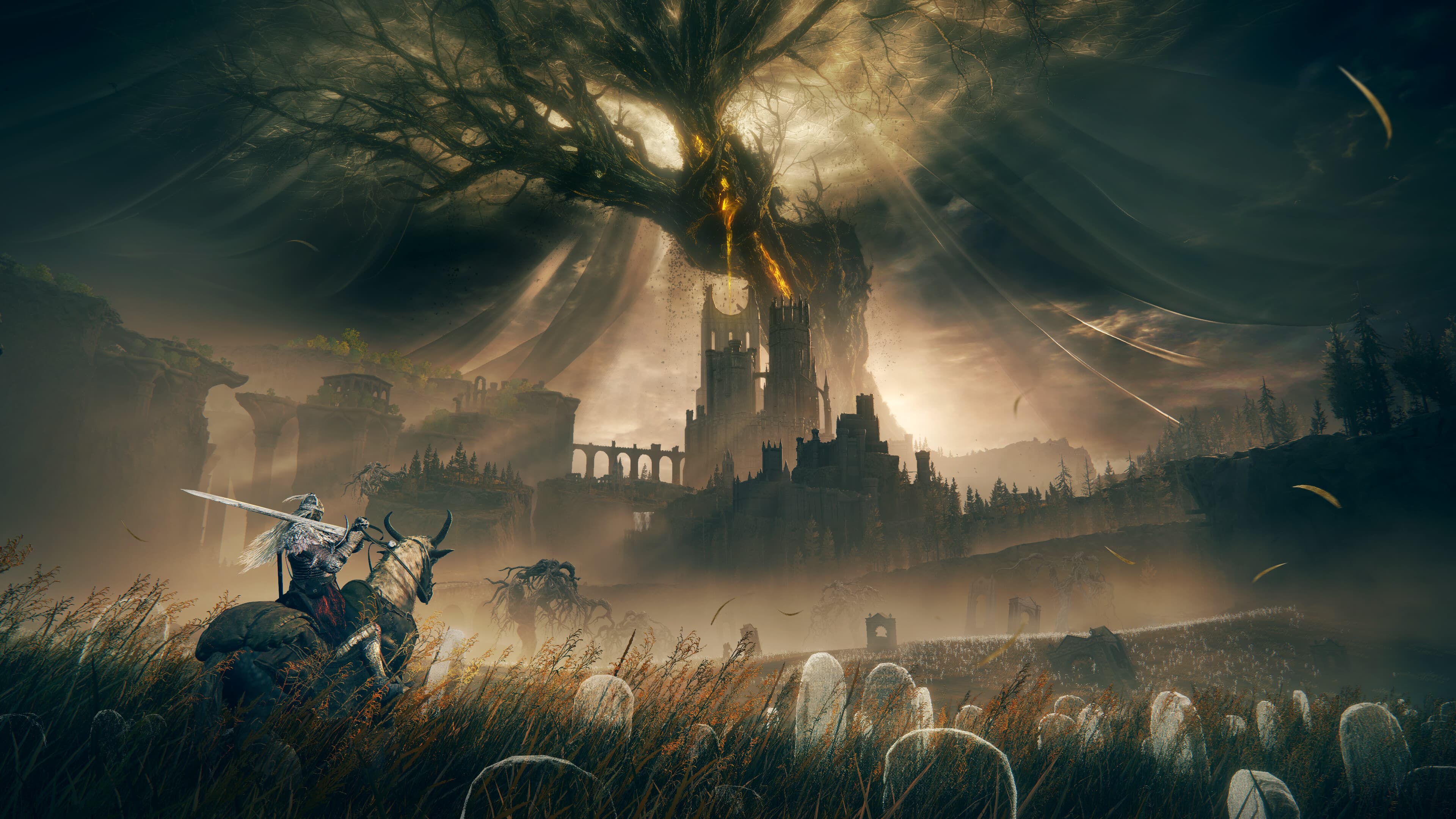
Source · 2.73 MB · 1 / 3
Overview
A focused OpenCV toolkit for everyday image workflows: compress a JPEG at a chosen quality, resize it, and annotate with text/shapes. The committed demo runs on eldenring.jpg with IMWRITE_JPEG_QUALITY = 20, then writes compressed, resized, and annotated outputs checked into the repo for inspection.
File sizes below are measured from the GitHub artifacts — evidence of the quality vs. size trade-off the script is meant to explore.
Evidence
Compression pipeline
compress_image() reads with cv2.imread, encodes via cv2.imencode('.jpg', …, [IMWRITE_JPEG_QUALITY, quality]), decodes back, and writes the result. Quality is a single knob (0–100); the __main__ demo sets compress_quality = 20 on the Elden Ring sample, which is why the committed compressed file is dramatically smaller than the source.
Resize & annotation
resize_image() scales width/height from a percent argument using INTER_AREA — appropriate for downscaling. add_text_and_shapes() overlays title text with Hershey Simplex and draws a filled green rectangle, then saves annotated_image.jpg. Together the three helpers cover encode parameters, geometric resize, and basic drawing without a GUI.
Output file sizes
How to run
Create a virtualenv, pip install opencv-python, and run main.py. Outputs land beside the script as compressed_image.jpg, resized_image.jpg, and annotated_image.jpg — the same artifacts shown in this case study gallery.
Highlights
- JPEG compression via OpenCV imencode/imdecode with a tunable quality parameter
- Demo at quality 20: 2.73 MB → 811 KB on the committed sample (~70% reduction)
- Proportional resize with INTER_AREA; demo also writes a 992 KB resized output
- Annotation helper for overlay text and filled shapes (2.53 MB annotated output)
- Minimal setup: virtualenv + opencv-python, then python main.py
Technologies used
Core tools and libraries behind this project — click a logo for official docs.